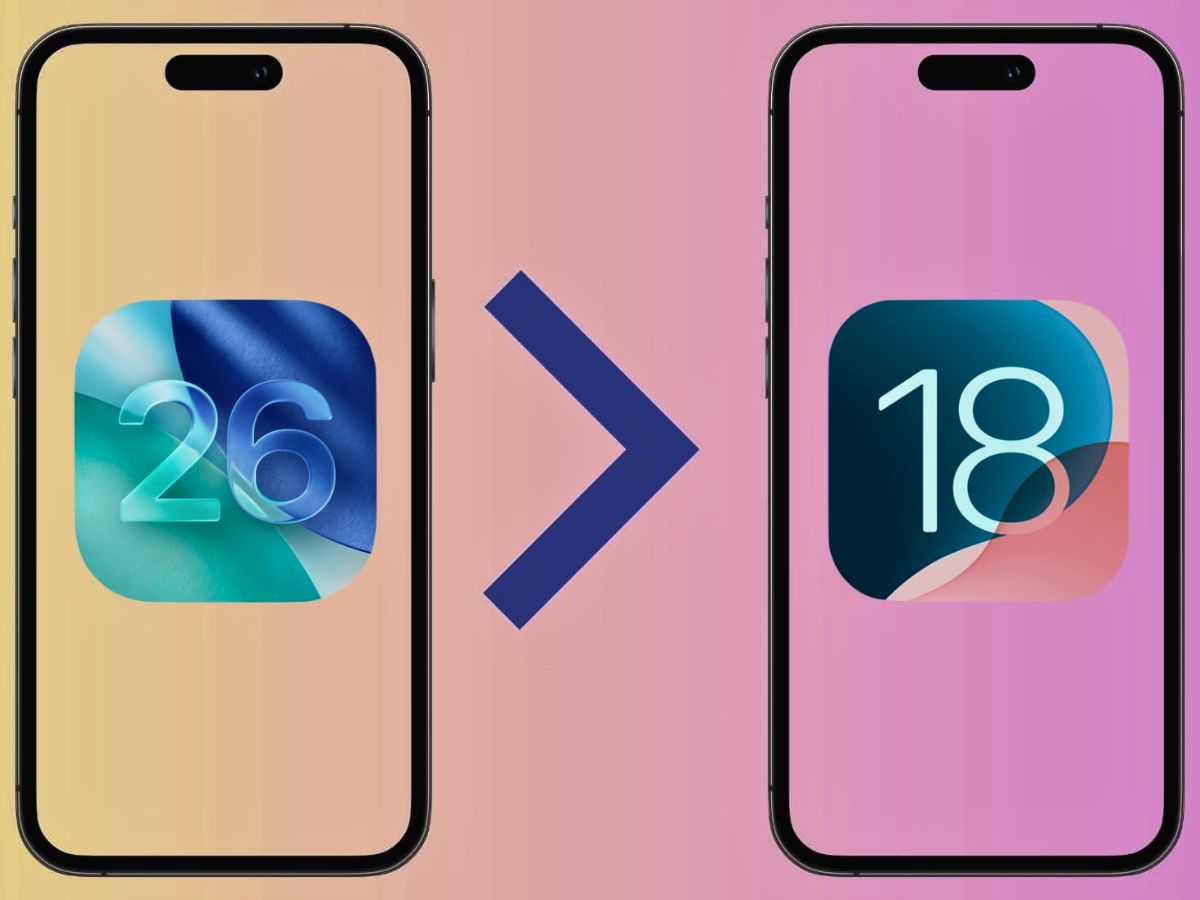
If you installed the iOS 26 public beta but are facing bugs or performance issues, you can go back to iOS 18. Beta versions let you try new features like the Liquid Glass interface and AutoMix in Music, but they can disrupt your daily use. Here’s a simple guide to safely uninstall iOS 26 beta and restore your iPhone.
Step 1: Back Up Your iPhone
Before downgrading, make sure your data is safe. Reverting to iOS 18 erases your phone.
Local Backup: Connect your iPhone to a Mac or Windows PC and back it up. On Mac, open Finder, select your iPhone, and click Back Up Now. On Windows, open the Apple Devices app and do the same.
iCloud Backup: You can also back up to iCloud, but note that a backup made on iOS 26 can’t be restored to iOS 18.
If you skipped backing up before installing iOS 26, sync important data like contacts, photos, and notes to iCloud. Go to Settings > [your name] > iCloud and check categories under Saved to iCloud.
ALSO READ: Apple ‘Awe Dropping’ Event: iPhone 17, Apple Watches & AirPods Pro | Details Inside
Step 2: Update MacOS or Windows Software
Ensure your computer is running the latest version:
On Mac: Apple menu > System Settings > General > Software Update.
On Windows: Open the Apple Devices app.
Updates help the restore process run smoothly.
Step 3: Turn Off Find My iPhone
Go to Settings > [your name] > Find My > Find My iPhone and turn it off. This avoids Activation Lock during the restore.
Step 4: Enter Recovery Mode
Connect your iPhone to the computer and follow these steps:
Press and release Volume Up.
Press and release Volume Down.
Press and hold the Sleep/Wake button until the recovery mode screen appears.
ALSO READ: Apple iPhone 17 Launch Event Live Streaming: When & Where to Watch in India? | WATCH
Step 5: Restore to iOS 18
Your computer will ask if you want to update or restore. Click Restore, then Restore and Update. If the prompt doesn’t appear, select your iPhone in Finder (Mac) or the Apple Devices app (Windows) and choose Restore iPhone.
iOS 18 will download and install.
Step 6: Restore Your Data
During setup, select From Mac or PC to restore your backed-up data. Choose the most recent backup, enter your encryption password if needed, and continue. Your apps, settings, and data will return safely.
Why Downgrading Is Important?
The iOS 26 beta has new features, but it can be unstable. Switching back to iOS 18 makes your iPhone stable again. You can try iOS 26 later when it officially comes out.
ALSO READ: iPhone 17 Pro Launch Tomorrow: 8K Video & More | Top Features to Watch For