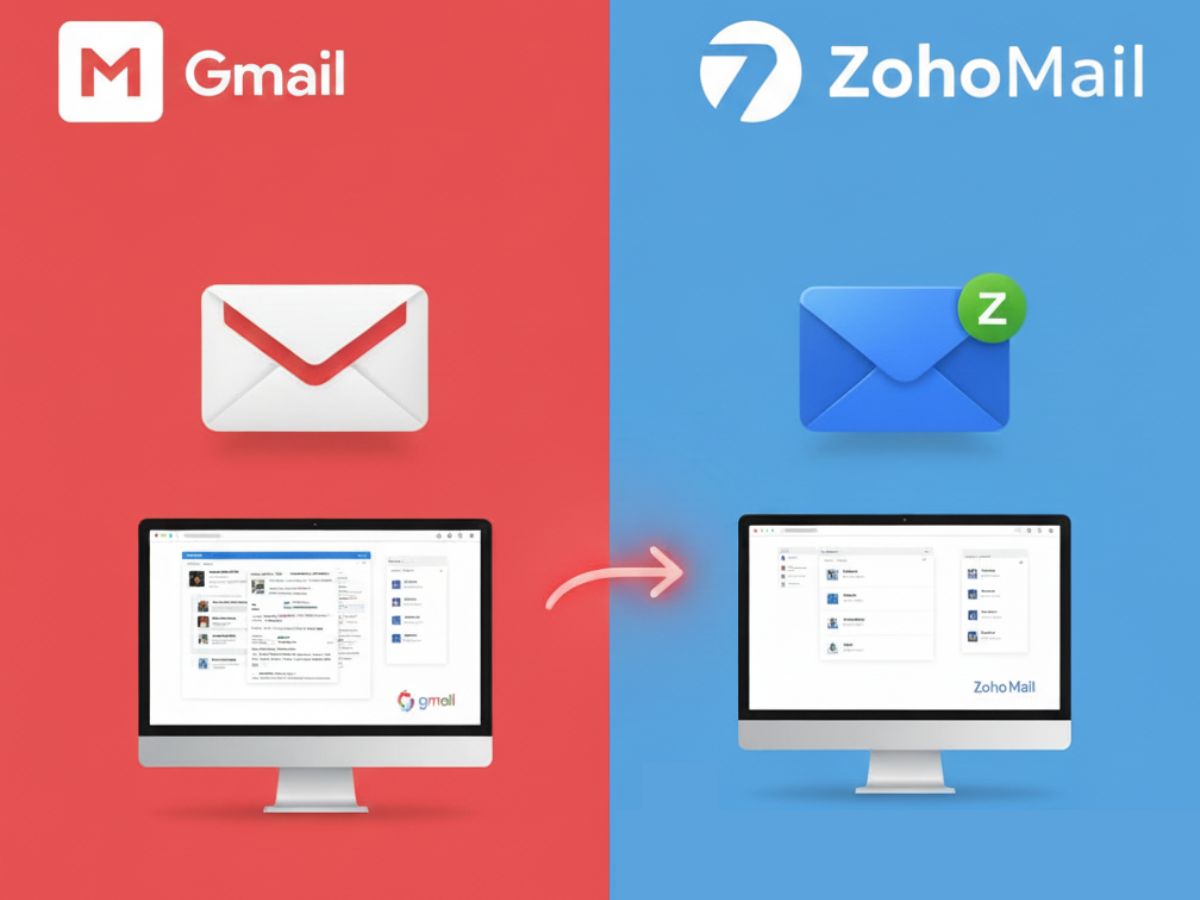
Switching from Gmail to Zoho Mail is becoming popular for people who want more privacy, an ad-free inbox, and better control over their emails. Whether you are a professional, a small business owner, or just someone who wants a clean and organized email experience,
Zoho Mail makes the switch easy. This guide will show you a simple step-by-step way to move your emails, contacts, and settings from Gmail to Zoho Mail without losing anything important.
Why Users Are Switching from Gmail to Zoho Mail?
Zoho Mail is growing as a privacy-friendly alternative to Gmail. Many professionals and small businesses like it because it doesn’t show ads, supports custom domains, and has strong privacy features. People who want more control over their inbox and a focus on productivity are choosing Zoho Mail over Gmail.
The good news is that switching is easy and safe. You can move all your emails, folders, and contacts without losing any important data.
ALSO READ: Anime Reborn Codes October 2025: Check List of Active Codes | Anime Reborn Codes
Step 1: Create a Zoho Mail Account
First, go to Zoho Mail and sign up. You can use a free plan or choose a paid plan depending on what you need. Once your account is ready, you can start transferring your Gmail emails.
Step 2: Enable IMAP in Gmail
Next, open Gmail settings and go to Forwarding and POP/IMAP. Enable IMAP so Zoho Mail can access your Gmail account. IMAP makes sure your emails and folders are imported safely.
Step 3: Use Zoho’s Migration Tool
Zoho Mail has a Migration Wizard in the Import/Export section. Use it to import all your emails, folders, and contacts from Gmail. It’s easy to use and completes the transfer without any problems.
ALSO READ: Anime Last Stand Codes October 2025: Check List of Active Codes | Latest Anime Last Stand Codes
Step 4: Set Up Email Forwarding
To make sure you don’t miss any new emails, go back to Gmail settings and enable forwarding to your Zoho Mail address. This way, all incoming messages will go to Zoho Mail.
Step 5: Update Contacts and Accounts
Finally, tell your contacts about your new email address. Update your email on all your accounts, like banking, subscriptions, and social media. This helps you stay connected and avoid missing messages.
Zoho Mail’s Privacy Advantage
Zoho Mail focuses on privacy. It gives you an ad-free inbox and uses strong encryption to protect your emails. This makes it a great choice for anyone who wants a secure, distraction-free email experience.
Switching from Gmail to Zoho Mail isn’t just moving emails. It’s a step toward better control, privacy, and productivity. Zoho’s tools make the process fast, safe, and simple.
ALSO READ: HMD Touch 4G Launches as India’s First Hybrid Phone Under Rs. 4,000